Clients
A client is a physical thin PC with an installed agent that checks in with the server regularly. All management actions — update, rollback, remote access, group assignment — act on the client objects you see in this view.
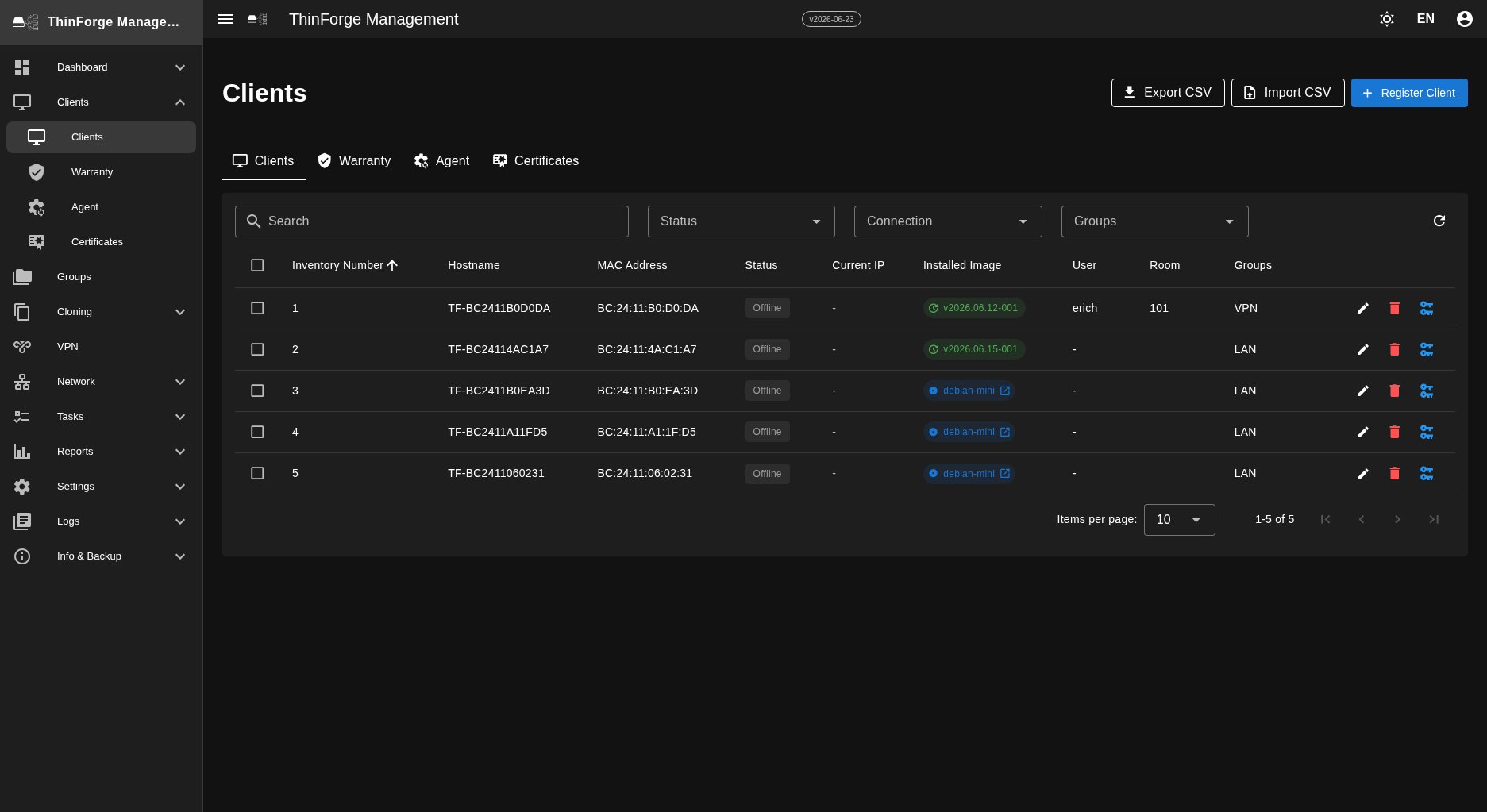
The clients list
The Clients menu item opens a table of every registered device. Each row shows at a glance:
- Status — Online, VPN sync, Offline, Cloning or Error (coloured dot)
- Hostname, IP and MAC of the device
- Version of the installed clone and, if an update is running, the target version
- Group, last heartbeat and the current boot mode
Filtering and searching
- Text search across hostname, MAC, IP and serial number.
- Status filter via the chip bar above the table — the Dashboard links straight here.
- Group filter via the dropdown at the top right.
- Sorting by clicking a column header.
Bulk actions
Select multiple clients via checkbox and apply one action to all at once: assign a group, plan a rollout, reboot, roll back to the previous version or remove from management.
Detail view
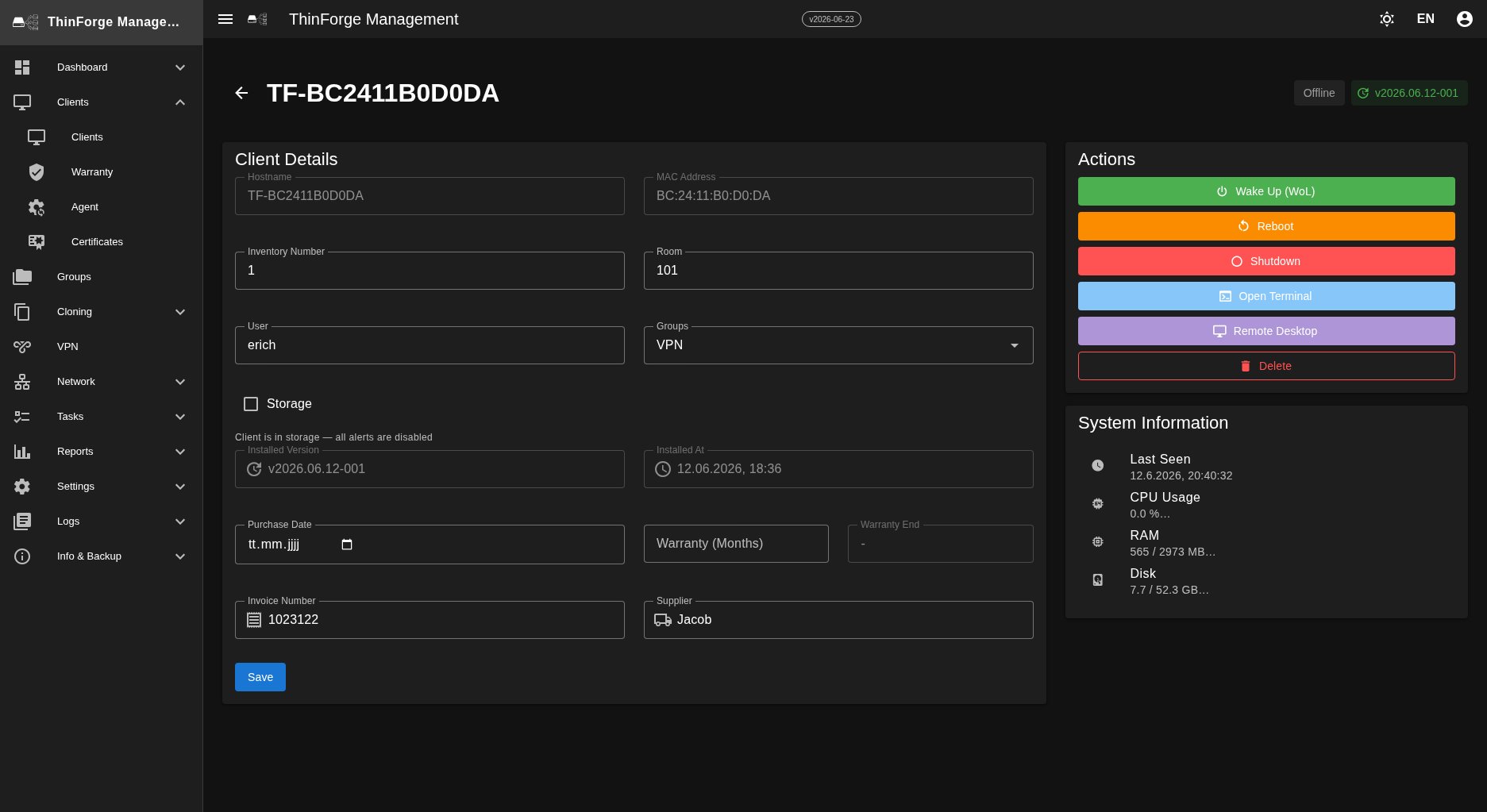
Clicking a row opens the detail view with several tabs:
- Overview — hardware summary, network, agent info, the installed clone and purchase/warranty data for support cases.
- Actions — start a rollout, roll back, reboot/shut down or remove from inventory.
- History — every event (heartbeats, updates, rollouts, errors) in chronological order, exportable as CSV.
- Tasks — all background jobs targeted at this client, with their status.
Stock devices
In the detail form you can mark a client as a stock device. This is meant for hardware kept in storage that should appear in the inventory without distorting day-to-day operations. Such devices appear semi-transparent in the list with an orange chip and are excluded from fleet and health metrics, dashboard alerts, reports and the daily history — so a device sitting in a cupboard never raises an "offline" alert.
When you roll the device out to a workstation, you remove the marking by hand in the detail form — from then on the client counts normally again.
Creating clients
Clients are created manually — there is no automatic registration of new devices. Use "+ Add client" to enter the device's MAC address (required) and, optionally, a group, room and inventory details. Only a created device is accepted by the server; heartbeats from unknown MAC addresses are rejected. For many devices at once, use the CSV import (see below).
CSV import and export
For bulk creation or backups the list can be exported as CSV and re-imported (UTF-8, semicolon-separated, Excel-compatible).
- Export produces a file with all fields including group, version and heartbeat.
- Import validates the schema, shows a preview and flags conflicts (e.g. a MAC that already exists) — choose to skip, update or cancel.
The MAC address is the only required field; further hardware and inventory fields are optional. An exported CSV can be re-imported as-is.
Boot modes
Every client has a boot mode that controls what it does on its next start. The mode is sent to the client and automatically reset to normal operation once it has run.
| Mode | Purpose |
|---|---|
| Local | Normal operation — the client boots from its local disk. |
| Deploy | On the next start an image is installed. |
| Capture | On the next start the device's disk is captured as an image. |
| No Config | No boot configuration is set — the client just boots normally. |
You can set the mode from the detail view or via a rollout.
VPN status
When a client is connected over VPN, a small chip next to the status dot shows the VPN state (connected, stale, error). The Overview tab of the detail view also includes traffic statistics. See Network for more.
Remote access
Depending on the use case and your permissions, three access methods are available:
- Terminal — a shell right in the browser, no password needed. Ideal for quickly checking a log or restarting the agent. Requires the client to be online and reachable (LAN or VPN).
- Remote desktop — shows the client's running desktop in the browser and replays mouse and keyboard input. Suited to end-user support, not to devices without an active session.
- Agent commands — actions such as rollout, reboot or rollback are sent as a command to the agent and run on its next check-in. This path always works, even without direct reachability.
Managing the agent
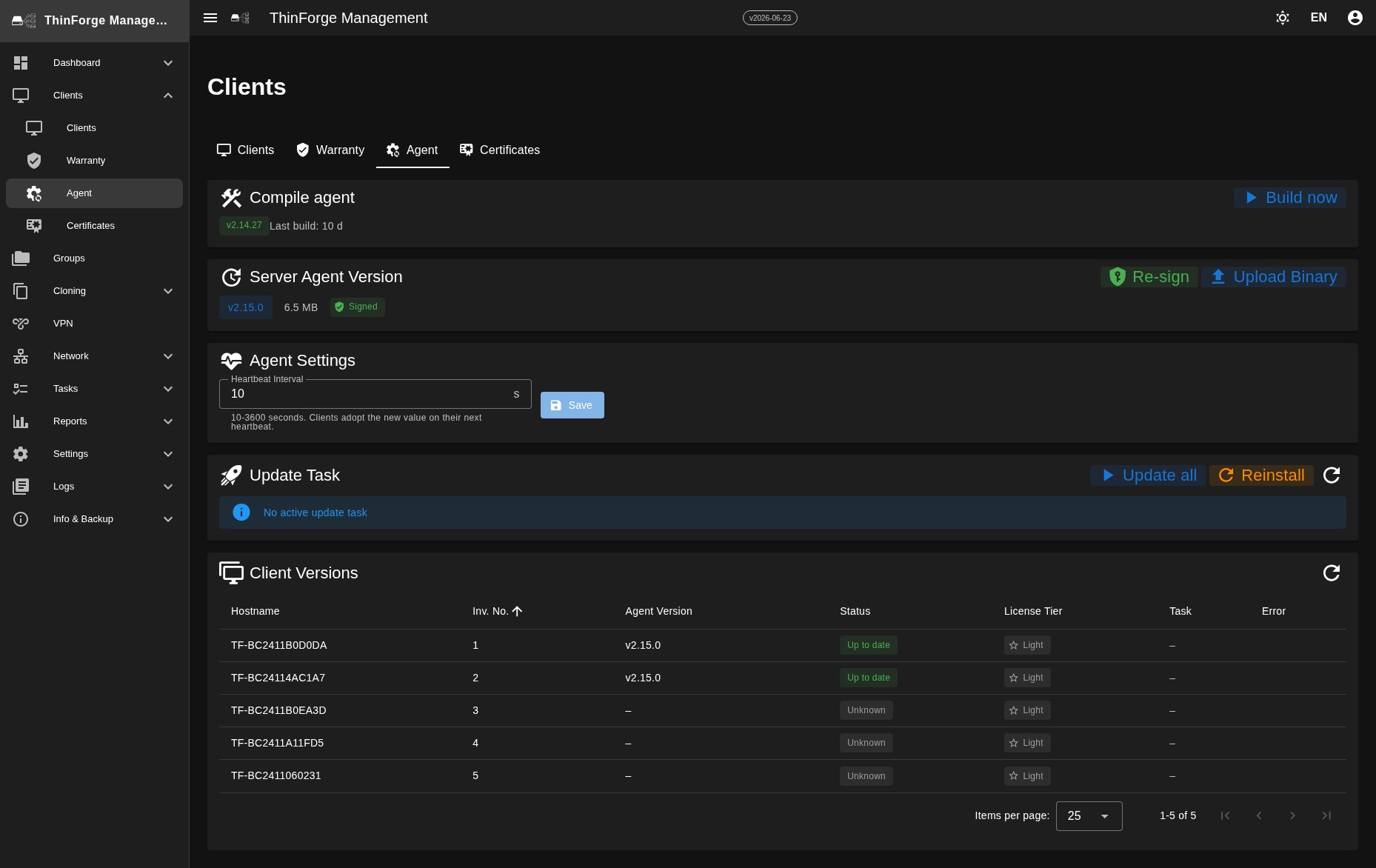
The Agent tab manages the agent software itself: build and sign the agent, upload or re-sign the server agent version, set the heartbeat interval (10–3600 seconds; clients adopt the value on their next heartbeat), and review the installed client versions and update them via "Update all" or "Reinstall".
Certificates
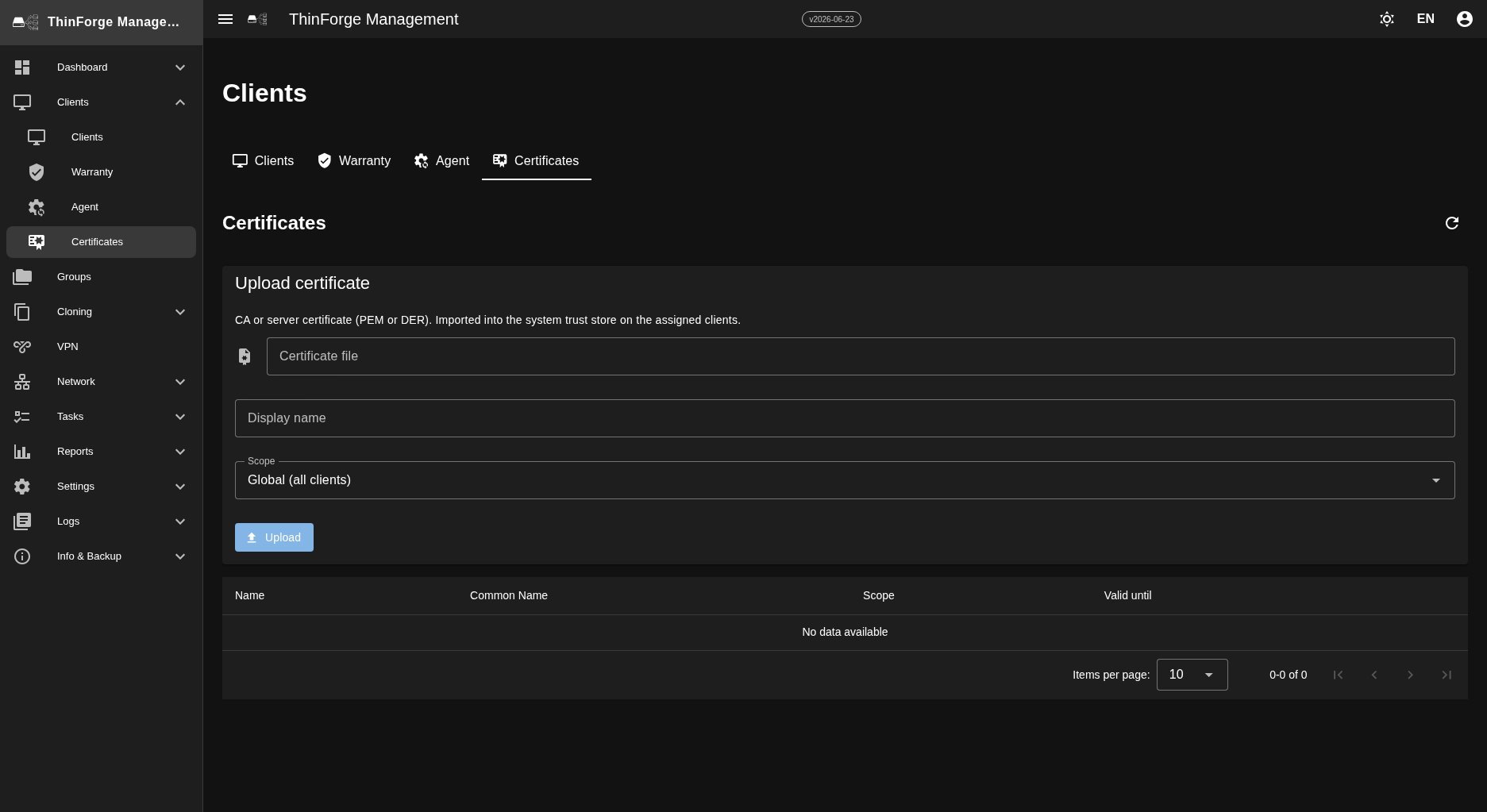
The Certificates tab lets you upload a CA or server certificate (PEM or DER) that gets imported into the system trust store of the assigned clients. The scope decides whether it applies globally to all clients or only to a selection — useful so the devices trust a self-issued server certificate.
Common problems
- Client does not appear in the list — check whether the device received an IP. If the Tools media is outdated, rebuild it (see Cloning).
- "Offline" although the client is running — usually a misconfigured server address or a renewed certificate the agent does not accept.
- Terminal or remote desktop does not open — check reachability (firewall, VPN) and, if needed, redeploy the access key from Settings.