Settings
The Settings menu gathers every administrative area. The menu is visible to everyone, but many actions (user management, certificate upload, factory reset) are admin-only and blocked for operators and viewers. The view has tabs; here are the most important ones, roughly in the order they become relevant in everyday work.
Services
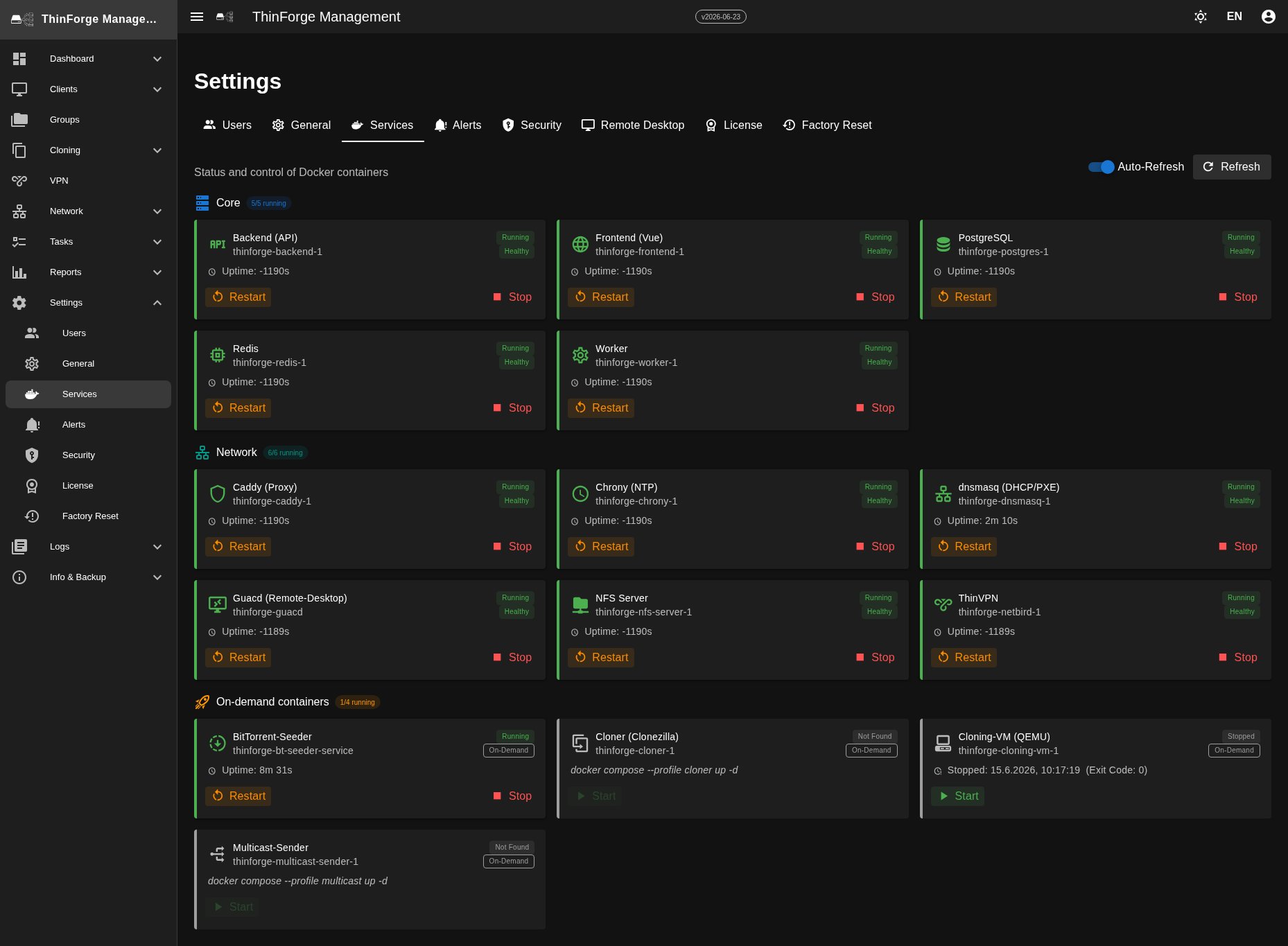
Full view of all ThinForge services, grouped by area. For each service you see its status, health (healthy / unhealthy / starting) and uptime. Use Start, Stop and Restart to control individual services — critical services ask for confirmation.
A grey on-demand badge marks services that intentionally run only when needed (for example during cloning). Their idle state is not an error.
Certificate (TLS)
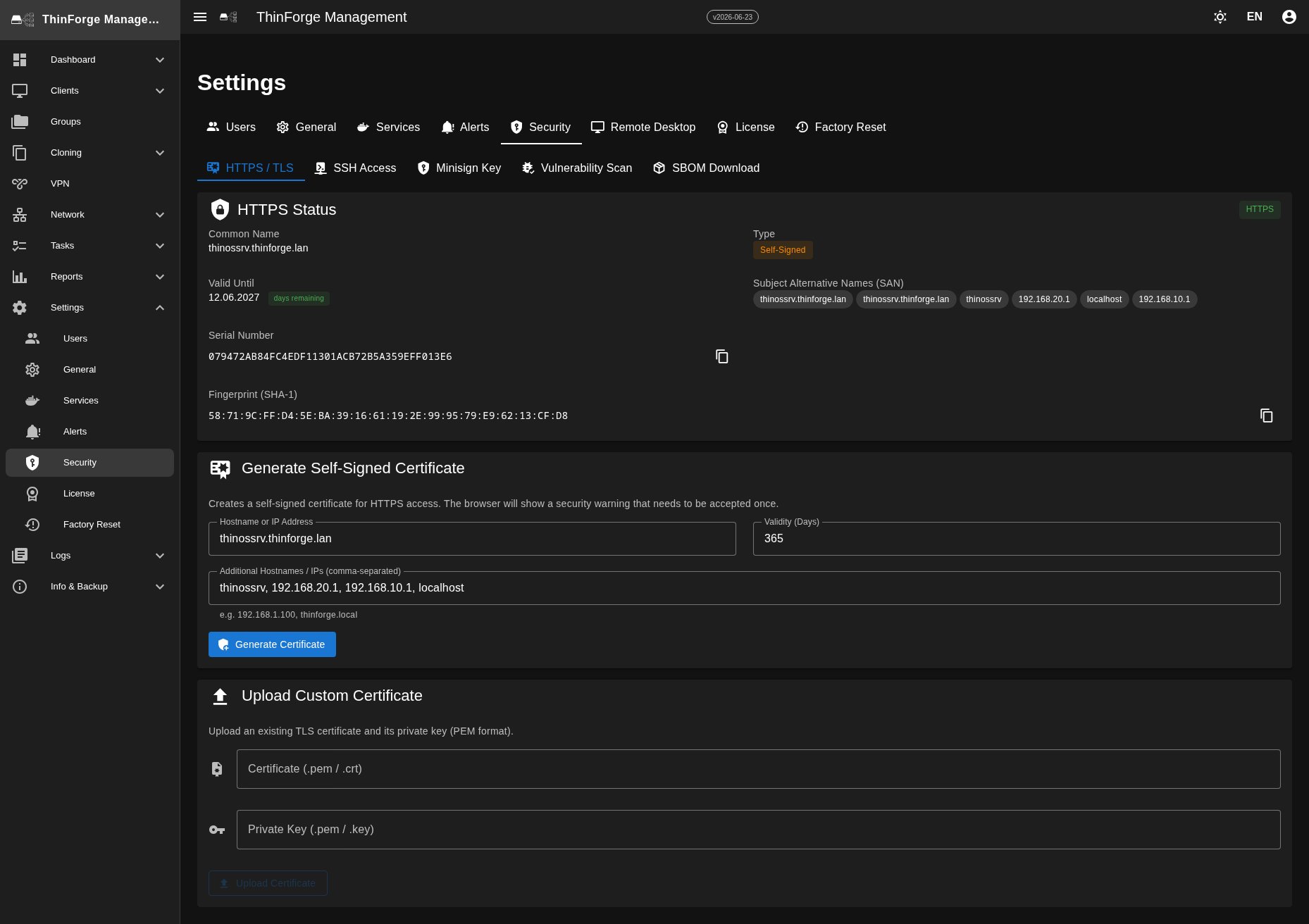
The HTTPS certificate for the web interface. After install it is self-signed, which is why the browser warns at first.
- Upload — certificate (
.crt) and key (.key) in PEM format, key without a passphrase. The interface checks that the certificate and key match each other. - After upload the new certificate is applied automatically (a few seconds of downtime for the web UI).
- The info panel shows name, type and validity — while the certificate is valid it shows the remaining days, and a red "Expired" notice once it has lapsed.
Users & Roles
List of all users with role, creation date and state. Use + User to create a new account (email, display name, password or reset link, role).
| Role | Permissions |
|---|---|
| Admin | Everything — incl. user management, certificate and factory reset |
| Operator | Clients, cloning, rollouts, tasks, remote desktop |
| Viewer | Read-only: dashboard and client list |
From a user's menu you can reset the password, reset 2FA (only when active) and disable or delete the account. 2FA reset and delete don't apply to your own account — use a second admin account for that.
Security
Bundles all security-relevant areas: the certificate, access keys for device provisioning, signed updates and vulnerability scans of the software in use, with an overview and software bill-of-materials downloads. Details under Security.
Alerts
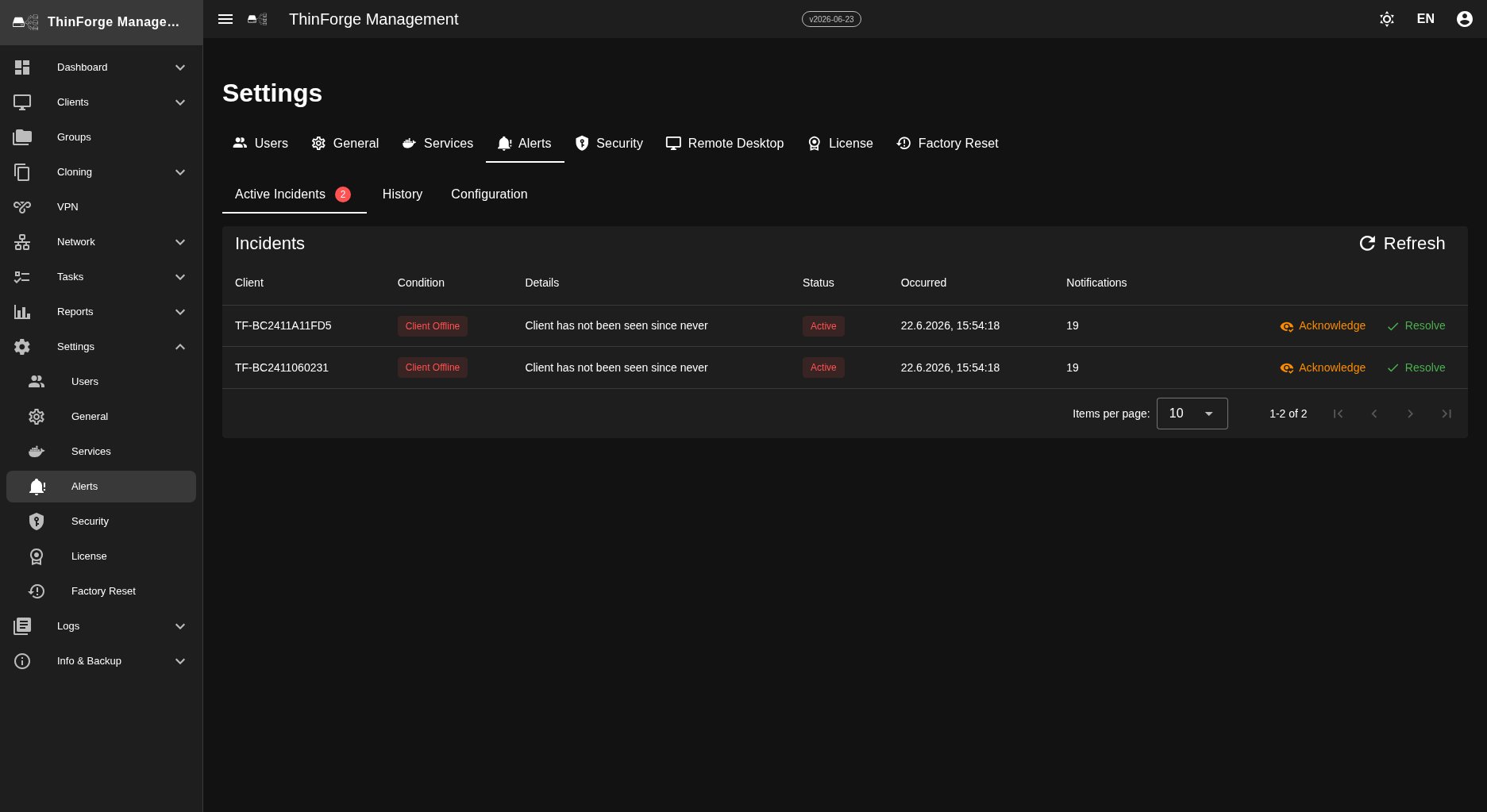
Management of operational alerts (e.g. a failed service, full disk, missing heartbeats, new vulnerabilities).
- Active — open incidents; Acknowledge to mark as seen or Resolve to close.
- History — closed incidents with a resolution note.
- Config — email and webhook channel (each with a test button) plus thresholds per metric.
License
Current license status plus uploading and removing a license bundle. Details under Licensing.
NTP
Time servers for the ThinForge server (and through it for all clients). You maintain the list of upstream servers and see clock quality and offset. Changes are applied without a restart.
General
- Session timeout — after how much inactivity a login expires.
Backup & Restore
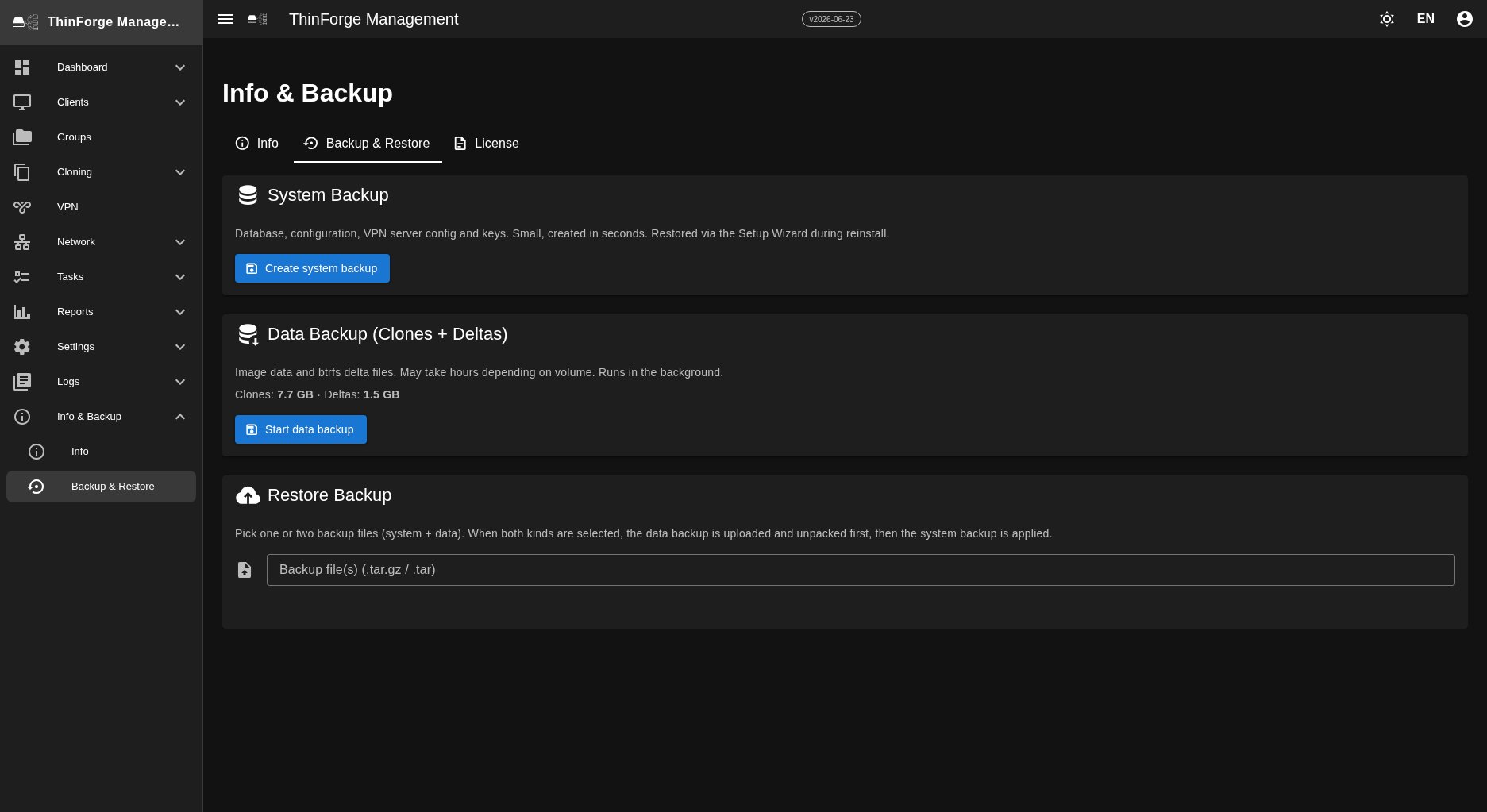
Backup & Restore lives under Info, not under Settings. There you create a snapshot of the ThinForge state for disaster recovery (back up now, restore from file, automatic backups on a schedule).
Factory Reset
Resets ThinForge fully to factory state and removes all data. Not reversible — a double confirmation is required. Typical use: resetting a test server before it is handed over.