Groups
Groups are the main tool for organising your client fleet. Use them to filter views, keep an overview and apply actions such as rollouts to many devices at once with a single click.
Why groups?
Typical reasons to group clients:
- Location — Branch A, Branch B, HQ
- Role — POS, training, back office, info kiosk
- Hardware generation — separate image variants for old and new devices
- Rollout waves — pilot, early adopter, broad rollout
- VPN reach — clients on the local network versus devices connecting via VPN (field service, home office). This matters when choosing a deployment method, for example.
A client belongs to at most one group. Groups can be nested (parent and child), for example "Branch North → POS".
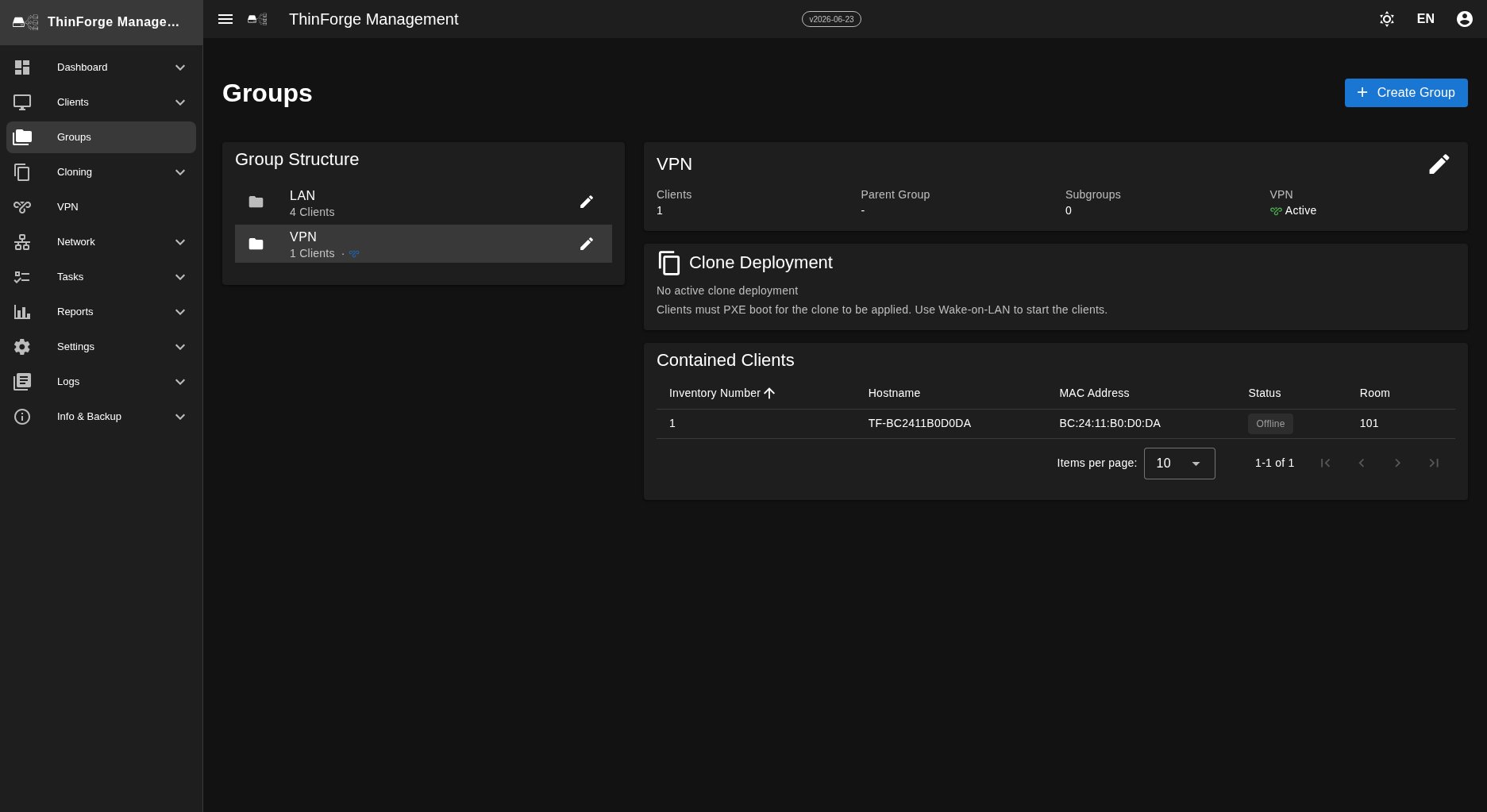
Groups overview
The Groups menu entry shows a tree view. Each row lists the name, the number of directly assigned clients and a compact status bar (online/offline/version):
HQ (42 clients)
├── Back office (12)
└── Training (8)
Branch North (25)
├── POS (15)
└── Info kiosk (10)
Each group offers these actions:
| Action | What it does |
|---|---|
| Show details | all assigned clients, tag filter, average version |
| Start rollout | all clients in the group receive an image |
| Edit | change name, description and parent group |
| Delete | dissolves the group — its clients become "ungrouped" |
Creating a new group
- In the overview click "+ New group".
- Enter a name (unique) and an optional description.
- Choose a parent group — none if the group should sit at the top level.
- Save.
The new group starts out empty. You then add clients from the clients list or directly from the group.
Assigning clients
There are two ways:
- From the clients list: select clients via checkbox (also "select all" for filtered results), then choose "Assign group" from the actions at the top.
- From the group: in the group detail click "Add clients" — the dialog lists every client that is not yet assigned.
Filtering in other views
The group assignment is available as a filter throughout:
- Clients — the "Group" dropdown at the top right of the list.
- Rollouts — pick a whole group as the target instead of a single client list.
- Dashboard — the Compliance card can be broken down per group.
Sub-groups
Sub-groups are purely organisational (tree view, filtering). An action — such as a rollout — applies only to the clients directly assigned to the selected group and is not propagated to sub-groups.
To reach a parent group together with its sub-groups, select the groups individually or use a client list.